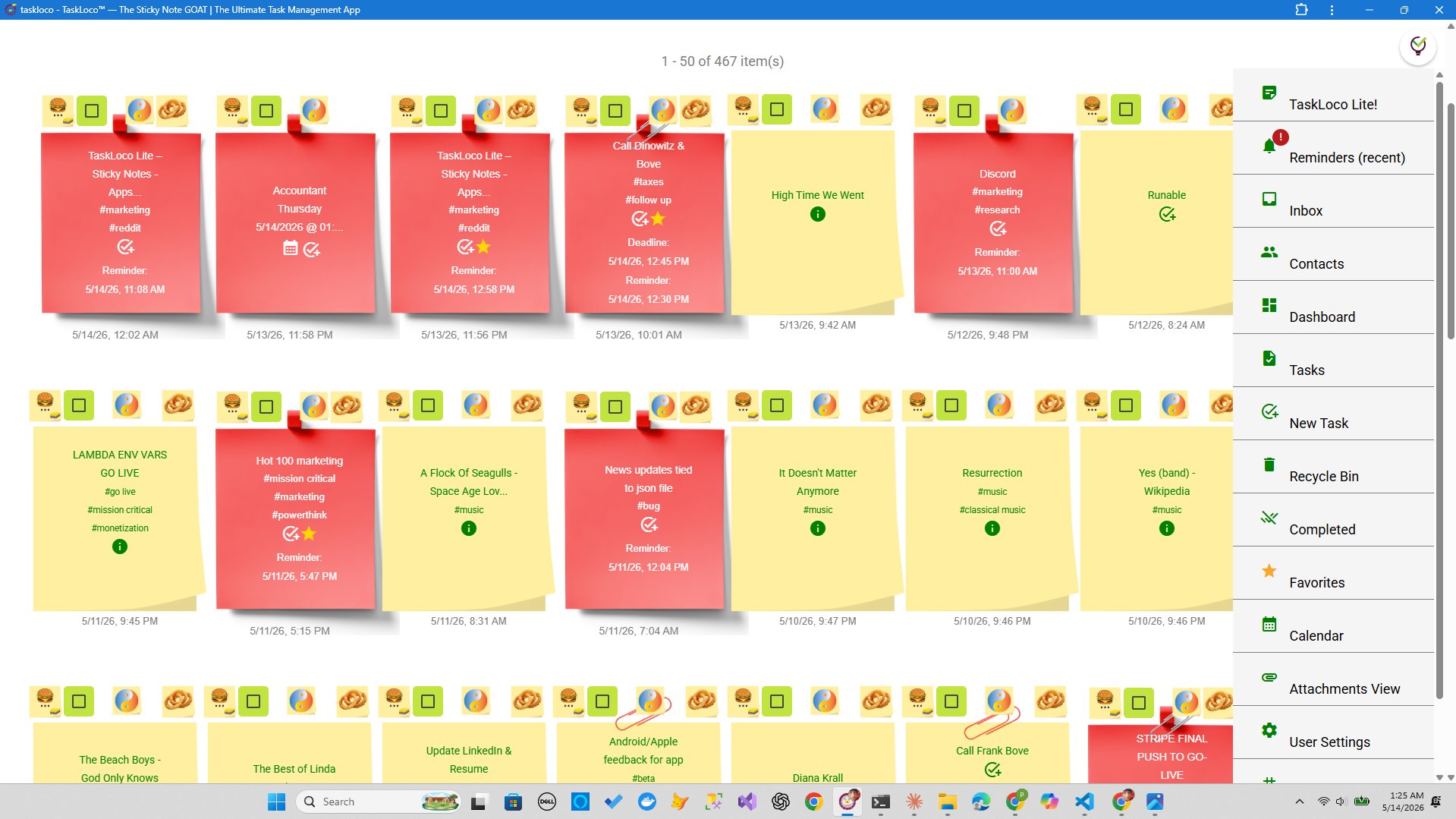
There is a reason whiteboards covered in sticky notes still show up in offices full of sophisticated software. Seeing your work laid out spatially — not buried in a list — changes how your brain processes what needs to happen next. A visual wall works because it externalizes your thinking. When a task is stuck in an inbox or a nested checklist, it doesn't feel real. When it's a card on a board you look at every morning, it does.
The problem is most tools that promise a visual workspace add so much ceremony around the visual part — columns, workflows, dependencies, permission levels — that the cognitive overhead of managing the board outweighs the benefit of seeing it. This guide covers what actually matters when you're choosing a visual task wall, followed by a close look at why TaskLoco's sticky-note approach gets it right.
What to Look for in a Visual Task Wall
A visual task wall is any interface that lets you see multiple tasks or notes simultaneously in a spatial layout — boards, grids, free-form canvases, or sticky-note arrangements — so that the state of your work is obvious without clicking into anything. It's useful for individuals who context-switch often, teams that need shared visibility without status meetings, and anyone whose to-do list keeps growing longer than it ever grows shorter.
Most people evaluate visual walls on looks alone and end up disappointed when the novelty wears off. The three criteria that actually determine whether a visual wall becomes a habit rather than a side experiment are:
- Capture friction. If adding a task to the wall takes more than a few seconds, you'll stop adding tasks to the wall and revert to whatever you used before. The fastest tools let you create a new card in one keystroke or tap, with zero required fields. Look for browser extensions or quick-capture shortcuts that let you add items the moment the thought appears, not when you have time to sit down at your desk.
- Signal-to-noise at a glance. A wall with fifty undifferentiated cards is no better than a flat list. The wall needs some visual grammar — color, grouping, size, or priority markers — so that urgent items jump out and completed items recede. If you can't read the state of your day in under ten seconds, the wall isn't doing its job.
- Connection between the wall and action. The best visual walls don't just show you what exists — they push you toward action. That means reminders that follow you rather than waiting for you to check the board, the ability to attach the actual files or links relevant to a task so context lives next to the card, and sharing that doesn't require setting up permissions for every collaborator.
How TaskLoco's Wall Actually Works
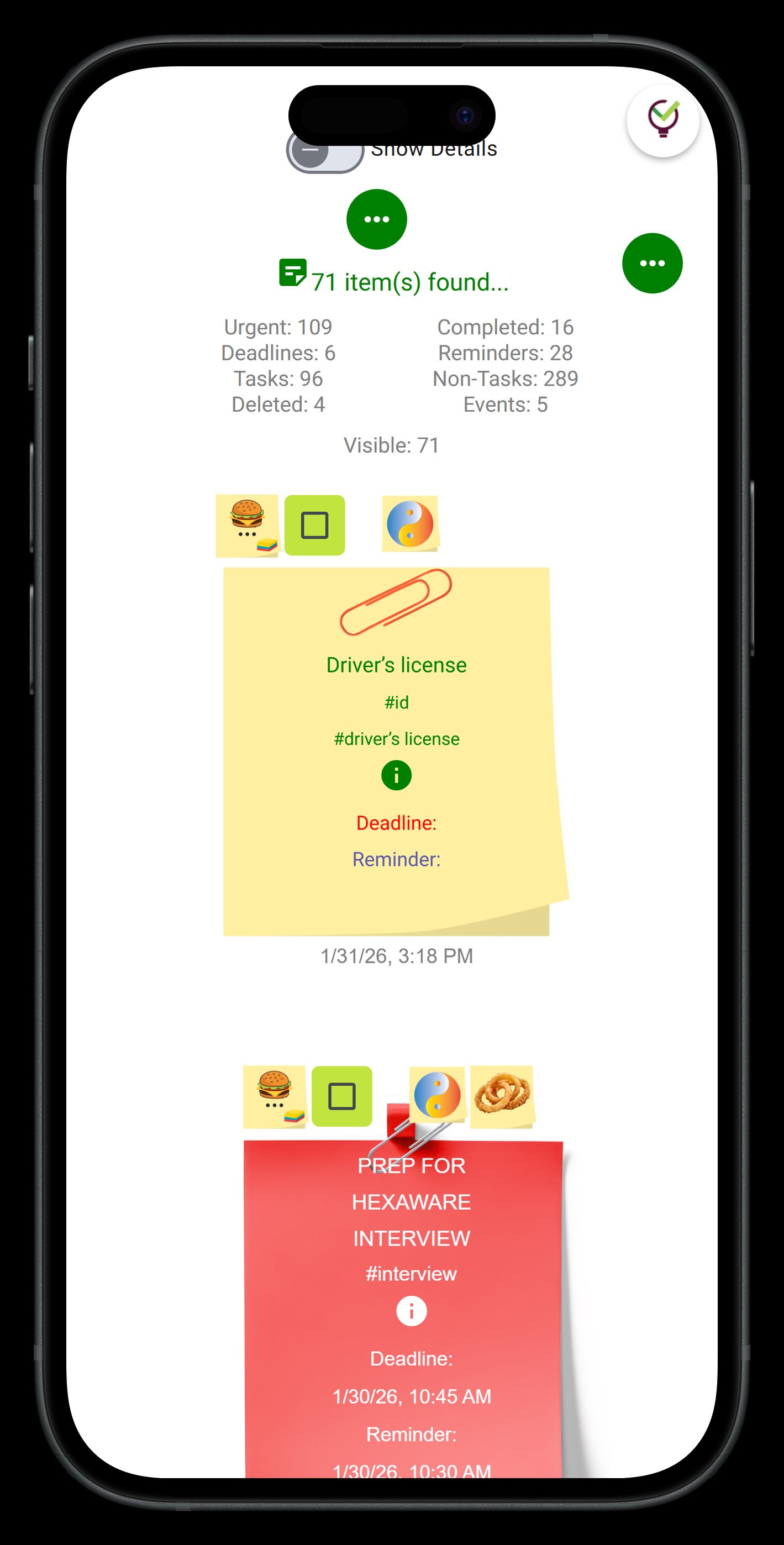
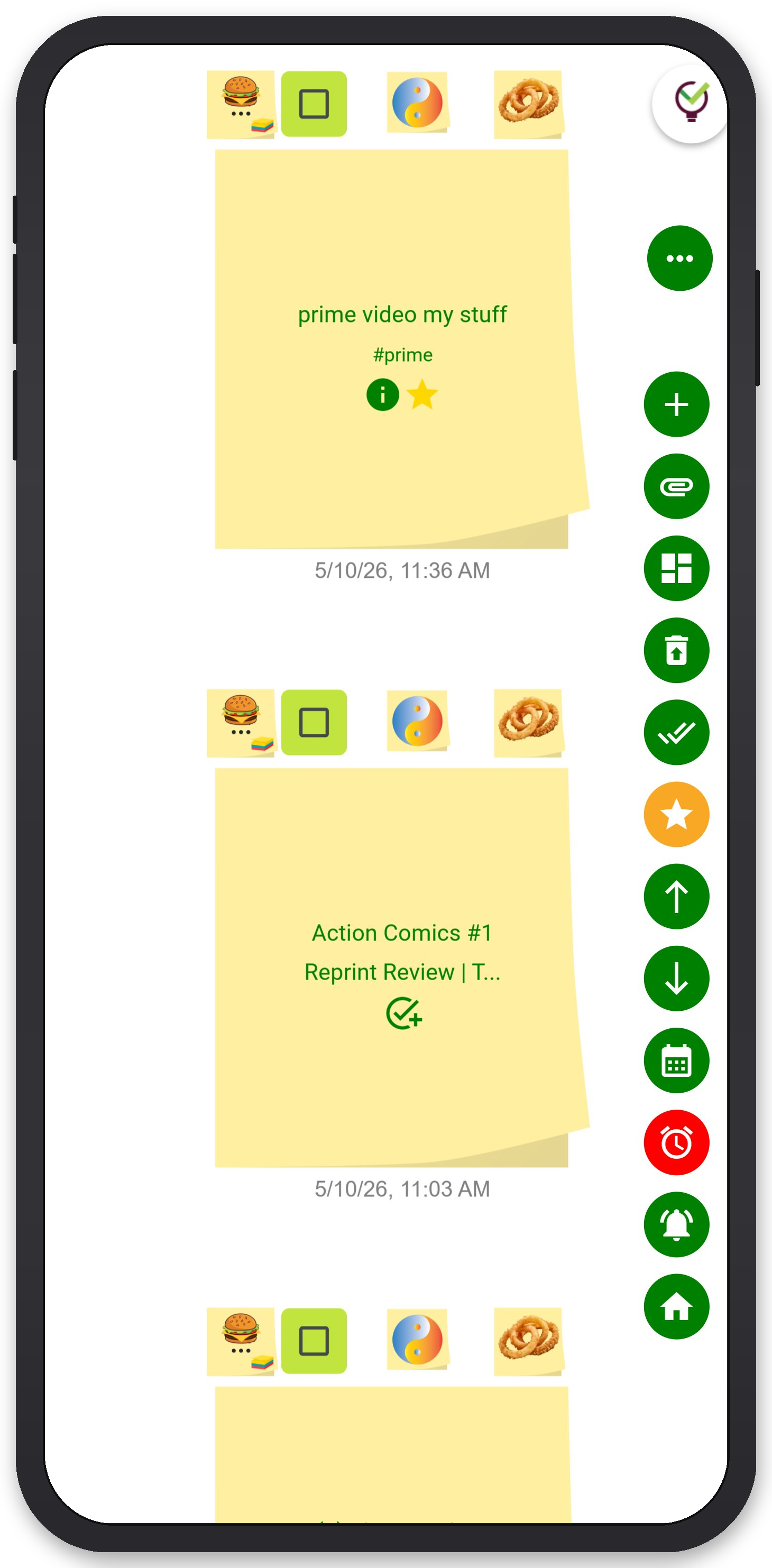
TaskLoco is built around the sticky note as the fundamental unit of work. Not a ticket. Not a card in a pipeline. A note — the same mental model you already use. On the wall view, notes are arranged spatially, color-coded by whatever system makes sense to you, and sized to reflect how much content they carry. You can pin notes to the wall, drag them around, and group them by project, urgency, or any ad-hoc system you invent. There is no prescribed workflow baked in.
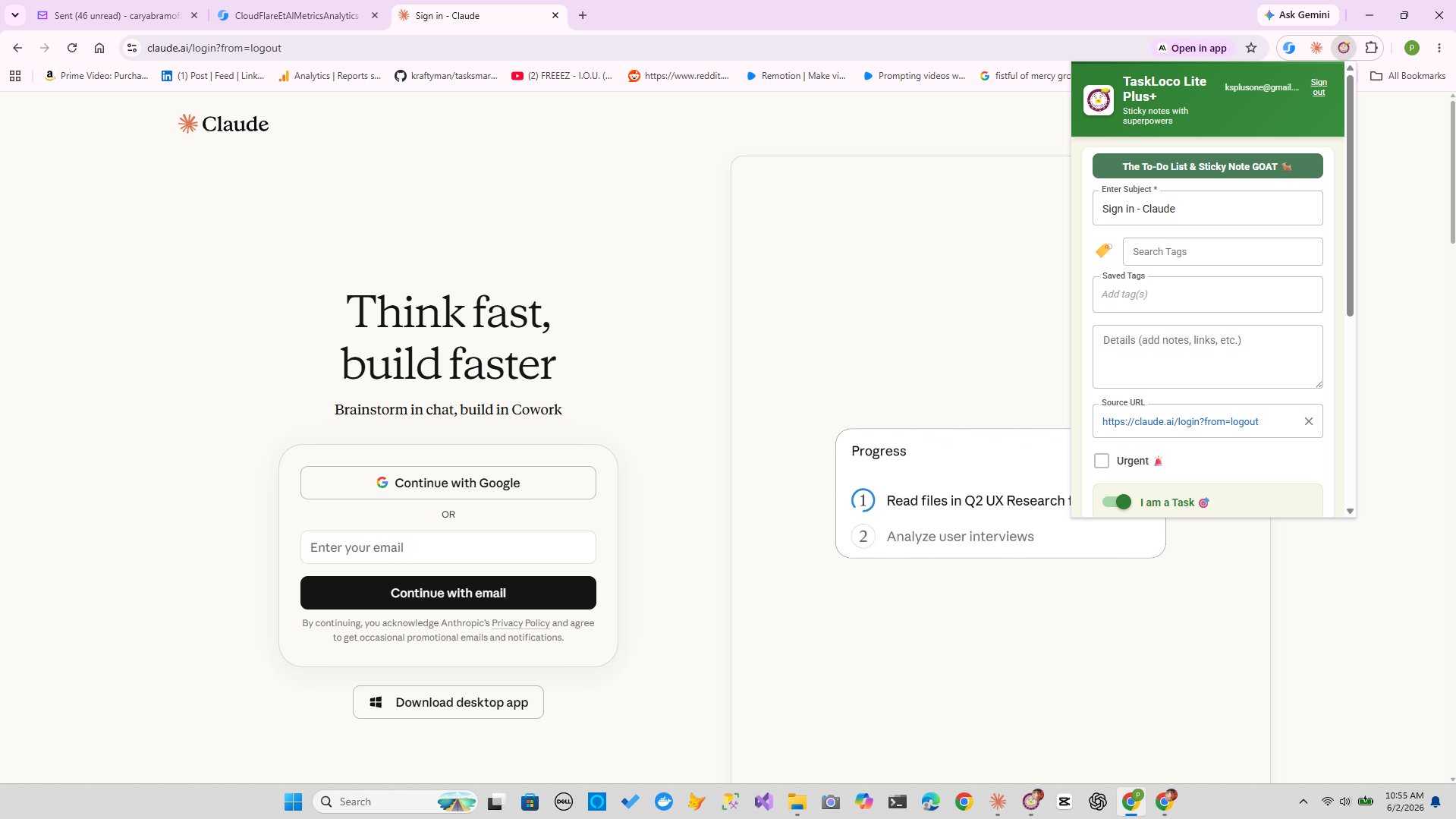
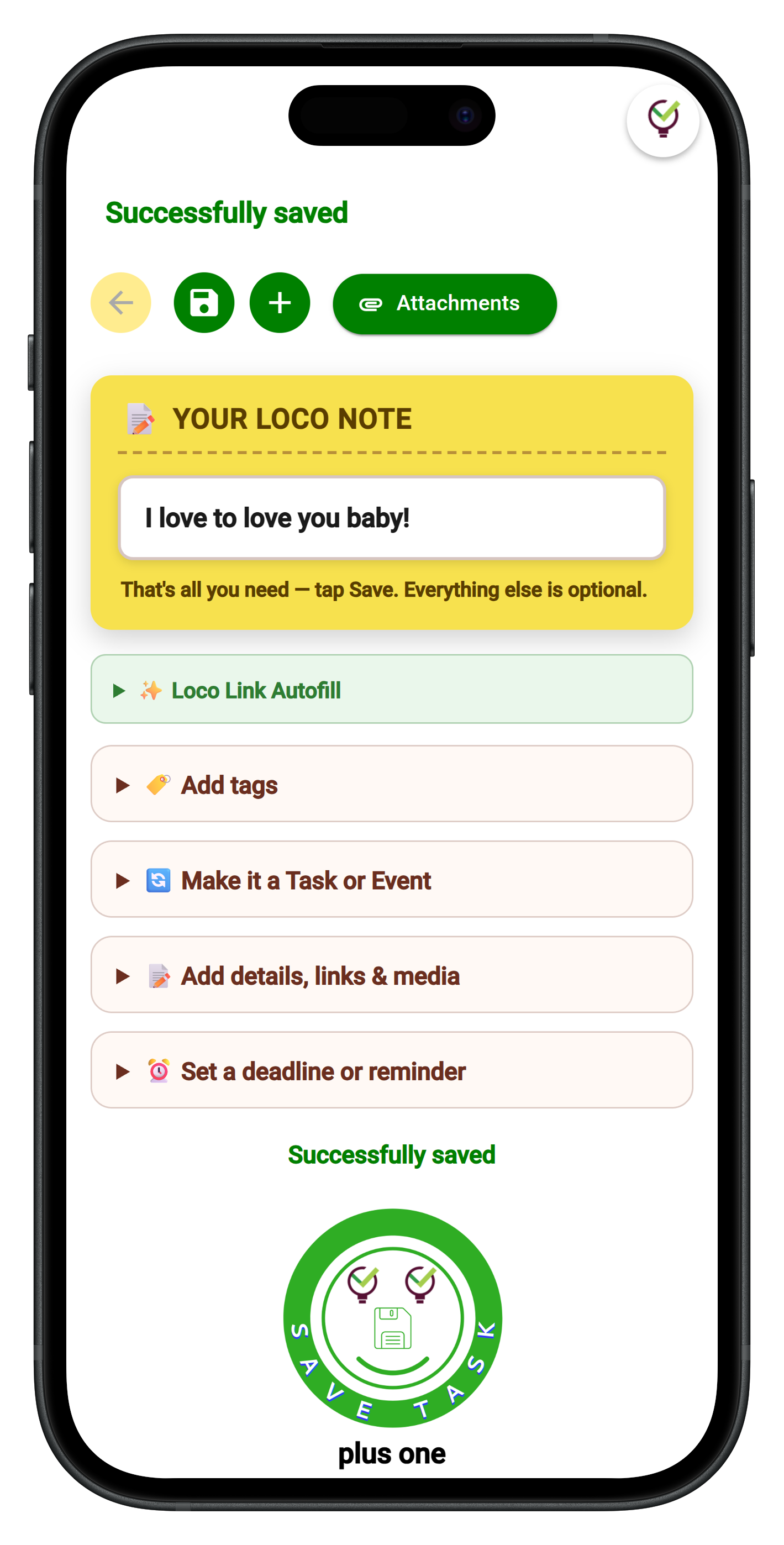
Adding a note takes one click or tap. There are no required fields, no dropdowns to fill before the card appears. If you're browsing and spot something you need to act on, the Chrome extension captures any webpage into a new note in a single click — the URL, page title, and any text you've selected land directly on the wall. That kind of zero-friction capture is what separates a visual wall you actually use from one you intend to use.
Premium subscribers get unlimited notes, which matters more than it sounds. A visual wall with a note cap is like a whiteboard someone keeps partially erasing — you never get a full picture of your work. With 10GB of file storage, you can attach the actual brief, the contract, the reference image directly to the note, so the card on the wall is also the context you need when you start the work.
Reminders, Files, and Team Sharing That Close the Loop
The weakest link in most visual walls is what happens after you put something on the board. You rearrange cards, you feel organized — and then the actual deadline arrives and you had no idea because the board didn't follow you anywhere. TaskLoco Premium reminders are delivered as push notifications to your phone and computer, and each notification deep-links directly back to the original note. You don't land on a generic dashboard; you land on the exact card that needs your attention. Optional email notifications are available as an additional channel, and an SMS add-on is there if you want a belt-and-suspenders approach for critical deadlines.
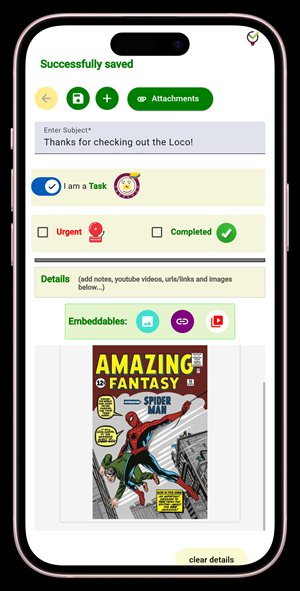
File attachments work the same way — context lives on the card, not in a separate drive you have to go find. Attach a PDF, an image, a voice memo, a spreadsheet. When the reminder fires and drops you into the note, everything you need to act is already there. Premium gives you 10GB of storage included, with additional tiers available if your work is file-heavy.
Team sharing in TaskLoco works the way email works: you share a note, the recipient gets it, and they can clone it as their own — no permission levels to configure, no access tiers to manage, no admin dashboard required. The shared note shows up on their wall just like any other note. Each team member has their own Premium subscription, which means their own wall, their own reminders, and their own storage — not a shared bucket where one person's clutter becomes everyone's problem.
TaskLoco Premium is regularly $9.99/month per person. Right now, charter members can lock in 50% off the regular price — forever. That means $4.99/month per person today. And if our price ever goes up, you still pay half. Always.
Code CHARTER50 auto-applies at checkout. First 500 spots only — once they're gone, this offer is gone permanently. Act fast while spots last.
Every Premium subscription includes unlimited notes, 10GB file storage, reminders, calendar, and team sharing. Each team member requires a separate subscription. 7-day free trial — no charge until day 8. Cancel anytime.
Free Options: TaskLoco
TaskLoco Lite
- Native iPhone & Android app
- Completely anonymous — no sign-in
- Data stays on your device
- Up to 20 notes
- Free forever
TaskLoco Lite Plus+
- Web app + Chrome extension
- Sign in with Google
- Wall syncs across all devices
- Up to 30 notes
- Free forever
Lock In 50% Off — Forever
7-day free trial. No charge until day 8. CHARTER50 auto-applies at checkout.
🔒 Lock In My Charter SpotSee TaskLoco in Action
Frequently Asked Questions
What is a visual task wall and how is it different from a to-do list?
A to-do list is sequential — items stack up, and whatever is at the top gets attention while everything else waits. A visual task wall is spatial — all your active items are visible simultaneously in a layout you control. You can cluster notes by project, push urgent items to a corner, and read the state of your week in a single look without scrolling through anything. The cognitive difference is significant: lists hide context; walls surface it.
Does TaskLoco have a visual wall view?
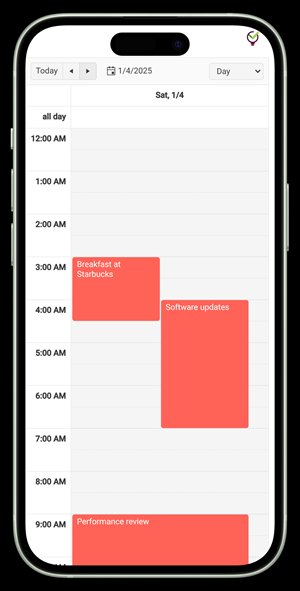
Yes. TaskLoco's core interface is a sticky-note wall. Notes are arranged spatially, color-coded however you choose, and draggable. Premium subscribers get unlimited notes on that wall, plus file attachments, reminders, a calendar view, and team sharing. Lite and Lite Plus+ users get a capped number of notes without reminders or attachments, but the spatial wall layout is present across all tiers.
How do TaskLoco reminders work on the visual wall?
Set a reminder on any note in TaskLoco Premium and it fires as a push notification to your phone and computer. The notification deep-links directly back to that specific note — not to a general inbox or dashboard. Optional email notifications are available as a free additional channel, and an SMS add-on is available if you want text reminders for critical items. Reminders are a Premium-only feature and are not available on Lite or Lite Plus+.
Can I share notes on my visual wall with teammates?
Yes, with a TaskLoco Premium subscription. Sharing works like sending an email — you share the note, the recipient gets it, and they can clone it onto their own wall as their own note. No permission tiers, no access levels, no admin configuration. Each team member needs their own Premium subscription. Sharing is not available on Lite or Lite Plus+.
What is the Chrome extension for and how does it help the visual wall?
The TaskLoco Chrome extension is available free with Lite Plus+ and Premium. It lets you capture any webpage into a new sticky note in one click — the page URL, title, and any text you've selected land on your wall instantly. This is the capture-friction solution: instead of switching to TaskLoco, creating a note, and typing a URL, you click the extension icon and it's done. The Chrome extension is part of the web app experience; it is not part of the native Lite app.
What is the difference between TaskLoco Lite, Lite Plus+, and Premium?
Lite is a native iPhone and Android app — anonymous, no sign-in, up to 20 notes stored on your device only, no sync, no reminders, no attachments, no sharing. Lite Plus+ is the web app and Chrome extension — requires a Google sign-in, up to 30 notes, synced across devices via browser, no reminders, no attachments, no sharing. Premium is the full system: unlimited notes, 10GB file storage, push notification reminders that deep-link back to the note, calendar view, and team sharing. Each tier requires its own separate subscription per person.
How much does TaskLoco Premium cost?
$9.99/month per person (currently $4.99/month per person for first 500 charter members with code CHARTER50)
Born in Brooklyn. Powered by AWS. Your data stays yours.
TaskLoco is available on iPhone, Android, Chrome, and every web browser.