You found something useful online. Now you need to save it before it disappears into the black hole of forgotten tabs. But screenshotting loses the text, bookmarks get buried, and email drafts are messy.
The solution is turning web pages into actual notes you can search, edit, and organize. Here are five methods that work reliably, from instant one-click capture to completely offline storage.
TaskLoco Premium is regularly $9.99/month per person. Right now, charter members can lock in 50% off the regular price — forever. That means $4.99/month per person today. And if our price ever goes up, you still pay half. Always.
Code CHARTER50 auto-applies at checkout. First 500 spots only — once they're gone, this offer is gone permanently. Act fast while spots last.
Every Premium subscription includes unlimited notes, 10GB file storage, reminders, calendar, and team sharing. Each team member requires a separate subscription. 7-day free trial — no charge until day 8. Cancel anytime.
Free Options: TaskLoco
TaskLoco Lite
- Native iPhone & Android app
- Completely anonymous — no sign-in
- Data stays on your device
- Up to 20 notes
- Free forever
TaskLoco Lite Plus+
- Web app + Chrome extension
- Sign in with Google
- Wall syncs across all devices
- Up to 30 notes
- Free forever
Method 1: Browser Extensions for One-Click Capture
Browser extensions are the fastest way to save web pages as notes. They capture the full page content with one click, preserving formatting and links.
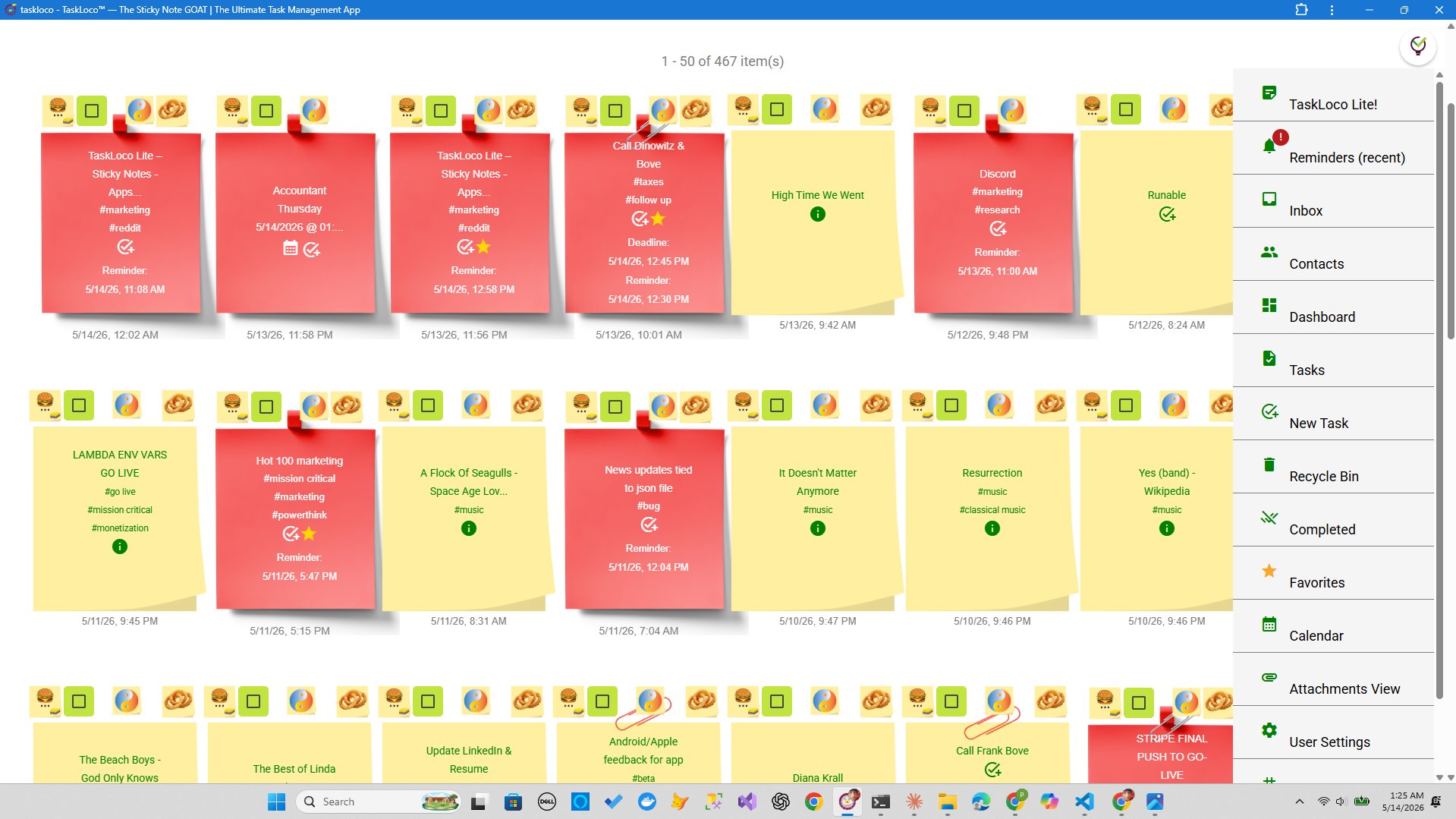
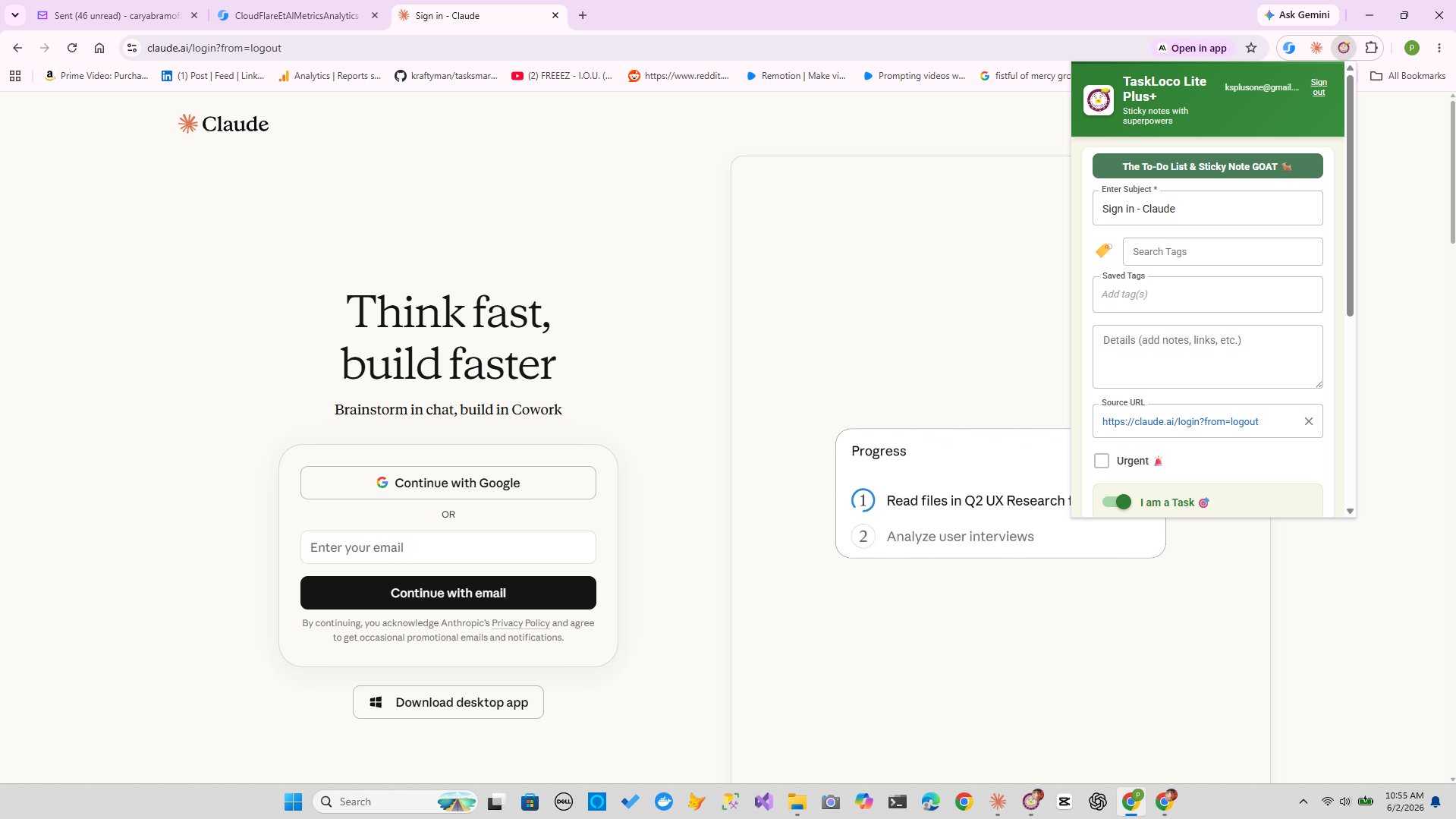
TaskLoco Chrome Extension: Click the extension icon and the entire webpage becomes a note instantly. Works with TaskLoco Lite Plus+ (free, 30 notes) or Premium (unlimited notes). The extension captures everything — text, images, links — and syncs across all your devices.
Evernote Web Clipper: Similar functionality but requires an Evernote account. Free tier gives you 60MB monthly upload limit. Premium costs $7.99/month.
Notion Web Clipper: Saves pages directly to your Notion workspace. Free for personal use, but Notion can feel overwhelming for simple note-taking.
Method 2: Copy-Paste into Note-Taking Apps
Sometimes the old-school approach works best. Select the content you want, copy it, and paste into your preferred note app.
Apple Notes: Preserves basic formatting when you paste. Works completely offline and syncs across Apple devices via iCloud. Free with any Apple device.
Google Keep: Quick and simple. Paste text, add labels, set reminders. Free with 15GB Google storage limit.
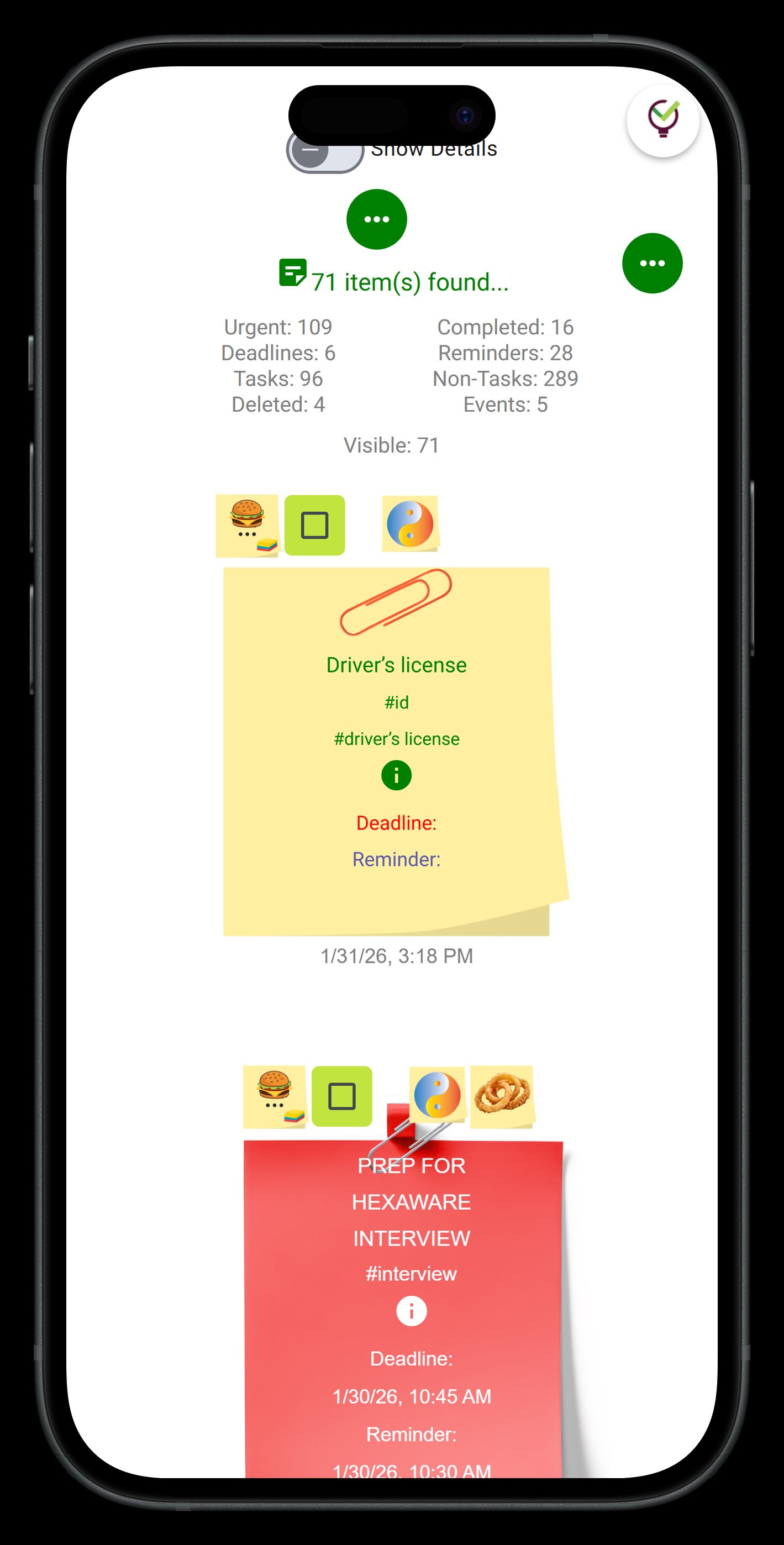
TaskLoco: Paste content into any note. TaskLoco Lite works completely offline with no account required — perfect for sensitive content. Stores up to 20 notes locally on your device.
The downside: you lose the original formatting and links. But you gain complete control over what gets saved.
Method 3: Email Yourself the Page
Every browser has a 'Share' or 'Send' option that can email the current page. This creates an automatic backup in your email that's searchable and accessible anywhere.
How it works: Click the share button in your browser, select email, and send to yourself. The email contains the page title, URL, and often a snippet of content.
Benefits: Works on any device, integrates with your existing email organization, and creates a time-stamped record.
Drawbacks: Clutters your inbox and usually only saves the URL plus a brief excerpt, not the full content.
This method works best as a backup or for pages you might want to share with others later.
Method 4: Save as PDF for Permanent Storage
Converting web pages to PDF preserves the exact layout and content, even if the original page disappears or changes.
Built-in browser printing: Press Ctrl+P (Cmd+P on Mac), select 'Save as PDF' as the destination. This captures the full page as it appears on screen.
Print-friendly versions: Many websites offer a 'Print' button that removes ads and navigation, giving you a cleaner PDF.
Storage options: Save PDFs to your local drive, cloud storage like Google Drive or Dropbox, or import into note apps that support file attachments.
TaskLoco Premium includes 10GB of file storage, so you can attach these PDFs directly to related notes for easy organization.
The Honest Comparison
| Feature | TaskLoco | Competitor |
|---|---|---|
| Speed of capture | One-click with Chrome extension FREE | Copy-paste requires manual selection |
| Offline access | TaskLoco Lite works completely offline FREE | Most web clippers require internet connection |
| Preserves formatting | Chrome extension captures original layout FREE | Copy-paste loses most formatting |
| File attachments | 10GB storage included with Premium | PDF saving requires separate file management |
| Cross-device sync | Lite Plus+ and Premium sync everywhere FREE | Email method syncs but clutters inbox |
| No account required | TaskLoco Lite needs no sign-up FREE | Most methods require accounts |
| Searchable content | Full-text search across all notes | Email search works but mixed with other messages |
| Permanent storage | Notes stored indefinitely FREE | PDFs last forever but harder to organize |
| Handles dynamic content | Captures static snapshot | All methods capture static content only |
| Privacy control | Lite version stores locally only FREE | Email and cloud methods involve third parties |
| Editing captured content | Full editing capabilities FREE | PDFs are read-only |
| Mobile support | Native iPhone and Android apps FREE | Browser methods work but clunky on mobile |
| Bulk organization | Tag and organize unlimited notes | Email folders work but get messy |
| Reminders and follow-up | Built-in reminders with Premium | Manual reminder setup required |
| Team sharing | Yes — included with Premium. Each team member requires a separate subscription — currently $9.99/month per person, but TaskLoco is offering a Charter Member special: 50% off for life, currently $4.99/month per person for the first 500 subscribers with code CHARTER50. | Email sharing works but version control issues |
Who Should Use Each
Use TaskLoco if…
- You want one-click webpage capture without switching between multiple tools
- You need notes that sync across all devices but also work completely offline
- You want to edit and organize captured content, not just store static copies
- You value privacy and want the option to store notes locally without any account
Use Other Apps if…
- You only occasionally save web content and don't need a dedicated system
- You're already heavily invested in another note-taking ecosystem
- You prefer using built-in browser features rather than installing extensions
- You need advanced PDF annotation features beyond basic note-taking
Lock In 50% Off — Forever
7-day free trial. No charge until day 8. CHARTER50 auto-applies at checkout.
🔒 Lock In My Charter SpotSee TaskLoco in Action
Frequently Asked Questions
What's the fastest way to save a webpage as a note?
Browser extensions are fastest. TaskLoco's Chrome extension captures any webpage in one click. Install it free, and every webpage becomes a searchable note instantly.
Can I save web pages without an internet connection?
Yes, with TaskLoco Lite. It works completely offline with no account required. Save up to 20 notes locally on your device. Perfect for sensitive content or unreliable internet.
Do saved web pages work if the original site goes down?
Yes, if you capture the full content. Browser extensions and copy-paste methods save the actual text and images. Bookmarks and email links break if the site disappears.
How much does it cost to save web pages as notes?
$9.99/month per person (currently $4.99/month per person for first 500 charter members with code CHARTER50)
Can I edit web content after saving it as a note?
Yes, with most note-taking apps including TaskLoco. PDFs are read-only, but notes can be edited, highlighted, and reorganized. Add your own comments and tags for better organization.
What happens to images when I save a webpage?
Depends on the method. TaskLoco's Chrome extension captures images along with text. Copy-paste usually loses images. PDF saving preserves everything exactly as displayed.
Can I share saved web pages with my team?
Yes, with TaskLoco Premium. Share individual notes or entire collections with team members. Everyone sees real-time updates. Much cleaner than forwarding emails or sharing PDFs.
Born in Brooklyn. Powered by AWS. Your data stays yours.
TaskLoco is available on iPhone, Android, Chrome, and every web browser.