Kanban transformed how Toyota built cars in the 1940s — and now it's reshaping how teams everywhere manage work. At its core, Kanban is deceptively simple: visualize your work, limit what's in progress, and move tasks through defined stages until they're done.
But don't mistake simple for basic. This visual approach to workflow management has become the backbone of everything from software development to content creation to home renovation projects. Here's everything you need to know about Kanban and how to put it to work.
How Kanban Works: The Three Core Principles
Kanban operates on three fundamental principles that make it universally applicable, whether you're managing software releases or planning a wedding.
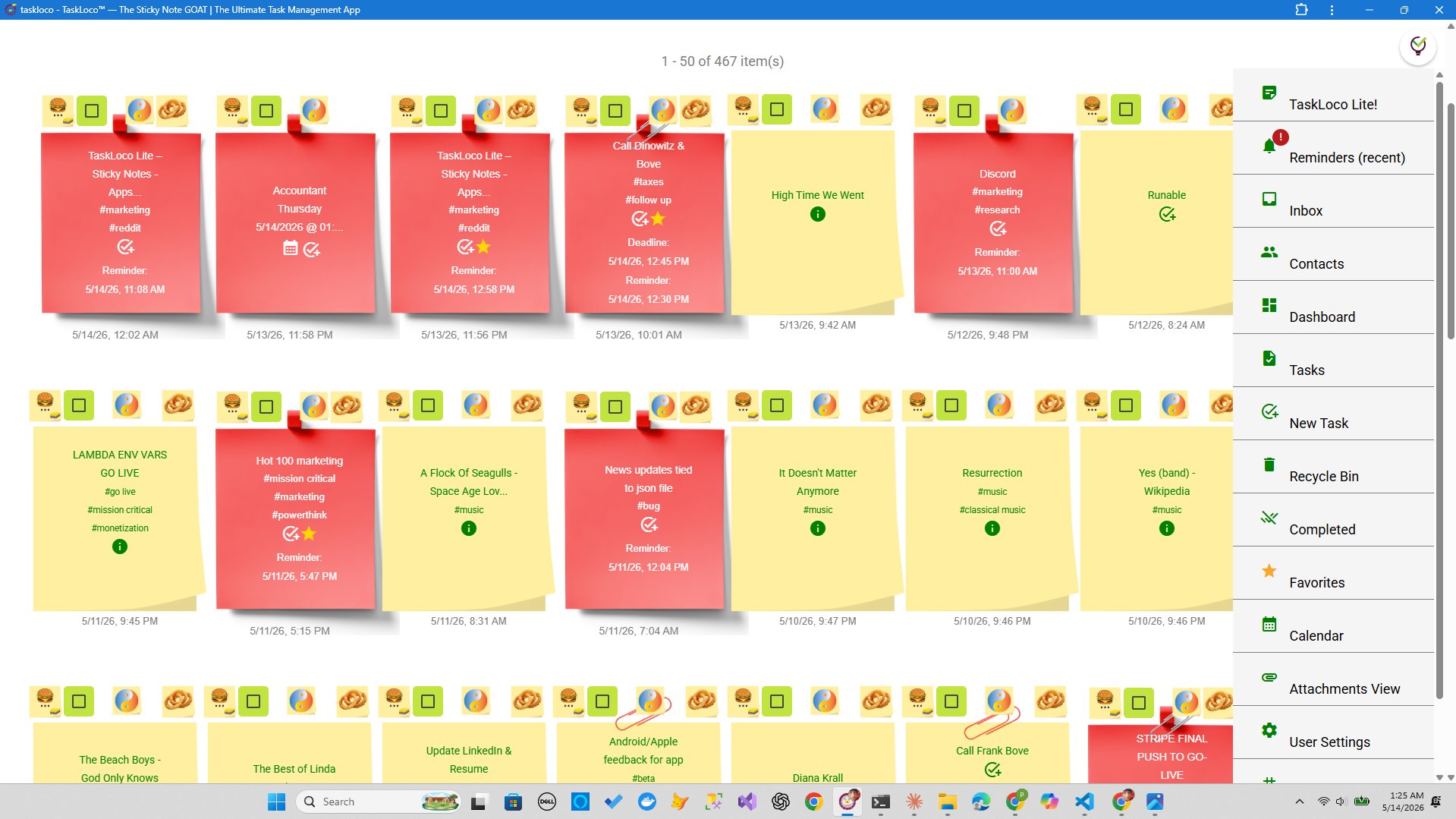
Visualize Your Workflow: Everything gets represented as cards on a board. Each card represents a task, and the board shows where every piece of work stands in your process. No more wondering what's happening or what comes next.
Limit Work in Progress (WIP): This is Kanban's secret weapon. Instead of trying to do everything at once, you set limits on how many tasks can be "in progress" simultaneously. If your team can realistically handle three active projects, that's your WIP limit. No exceptions.
Manage Flow: Tasks move from left to right through columns representing different stages — typically "To Do," "In Progress," and "Done." But you can customize these stages to match any workflow: "Ideas," "Research," "Writing," "Review," "Published."
Setting Up Your First Kanban Board
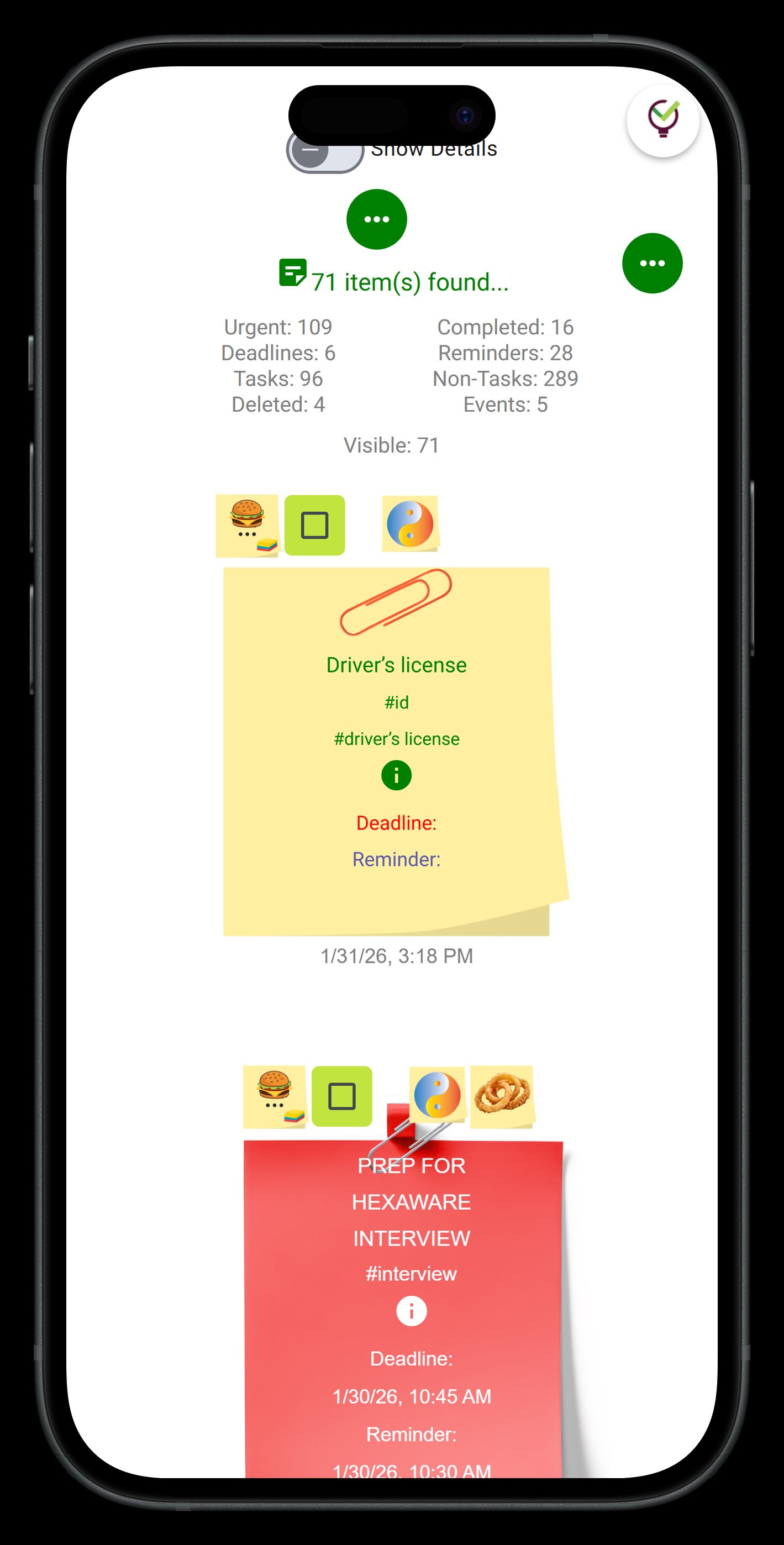
Start with the simplest possible setup — you can always add complexity later. Draw three columns on a whiteboard, open a spreadsheet, or use sticky notes on a wall. The medium doesn't matter; the structure does.
Column 1: Backlog or To Do — Everything that needs to happen eventually goes here. Don't overthink it. Capture ideas, requests, and tasks as they come up.
Column 2: In Progress or Doing — Work that's actively being tackled right now. This is where WIP limits become crucial. Start with a limit equal to your team size, then adjust based on what actually gets finished.
Column 3: Done — Completed work goes here. This column serves as both a record of accomplishment and a reality check on your team's actual capacity.
Each card should contain just enough information to be actionable. A brief description, who's responsible, and any critical deadlines. If you need a paragraph to explain a task, break it down into smaller cards.
Common Kanban Variations and When to Use Them
Basic three-column Kanban works for many situations, but specific workflows benefit from customized approaches. Here are the most effective variations:
Software Development: "Backlog," "Design," "Development," "Testing," "Deployment," "Live." Each stage has clear entry and exit criteria — no task moves to "Development" without completing "Design."
Content Creation: "Ideas," "Research," "First Draft," "Editing," "Review," "Published." This prevents the common problem of half-finished articles piling up in various states of completion.
Personal Productivity: "Inbox," "Today," "This Week," "Waiting For," "Done." The "Waiting For" column captures tasks blocked by external dependencies — emails you're expecting, approvals you need, deliverables from others.
Event Planning: "Brainstorm," "Quote/Research," "Booked/Ordered," "Confirmed," "Complete." Each vendor, venue, and service gets its own card tracking through the pipeline.
Digital Kanban: When and How to Go Electronic
Physical boards work brilliantly for co-located teams, but digital Kanban becomes essential for remote work, complex projects, or when you need search, filtering, and reporting capabilities.
Digital boards offer advantages that paper can't match: automated notifications, file attachments, detailed task histories, and the ability to filter views by person, priority, or deadline. You can also set up rules — like automatically moving completed tasks to "Done" or sending reminders for overdue items.
However, digital tools can also become productivity traps if they're overcomplicated. The best digital Kanban solutions maintain the visual simplicity that makes the method powerful while adding just enough digital functionality to enhance rather than complicate your workflow.
Look for tools that offer clean visual interfaces, easy drag-and-drop task movement, and the ability to customize columns and WIP limits. Integration with calendars, file storage, and communication tools can streamline your process, but make sure these features serve your workflow rather than dictating it.
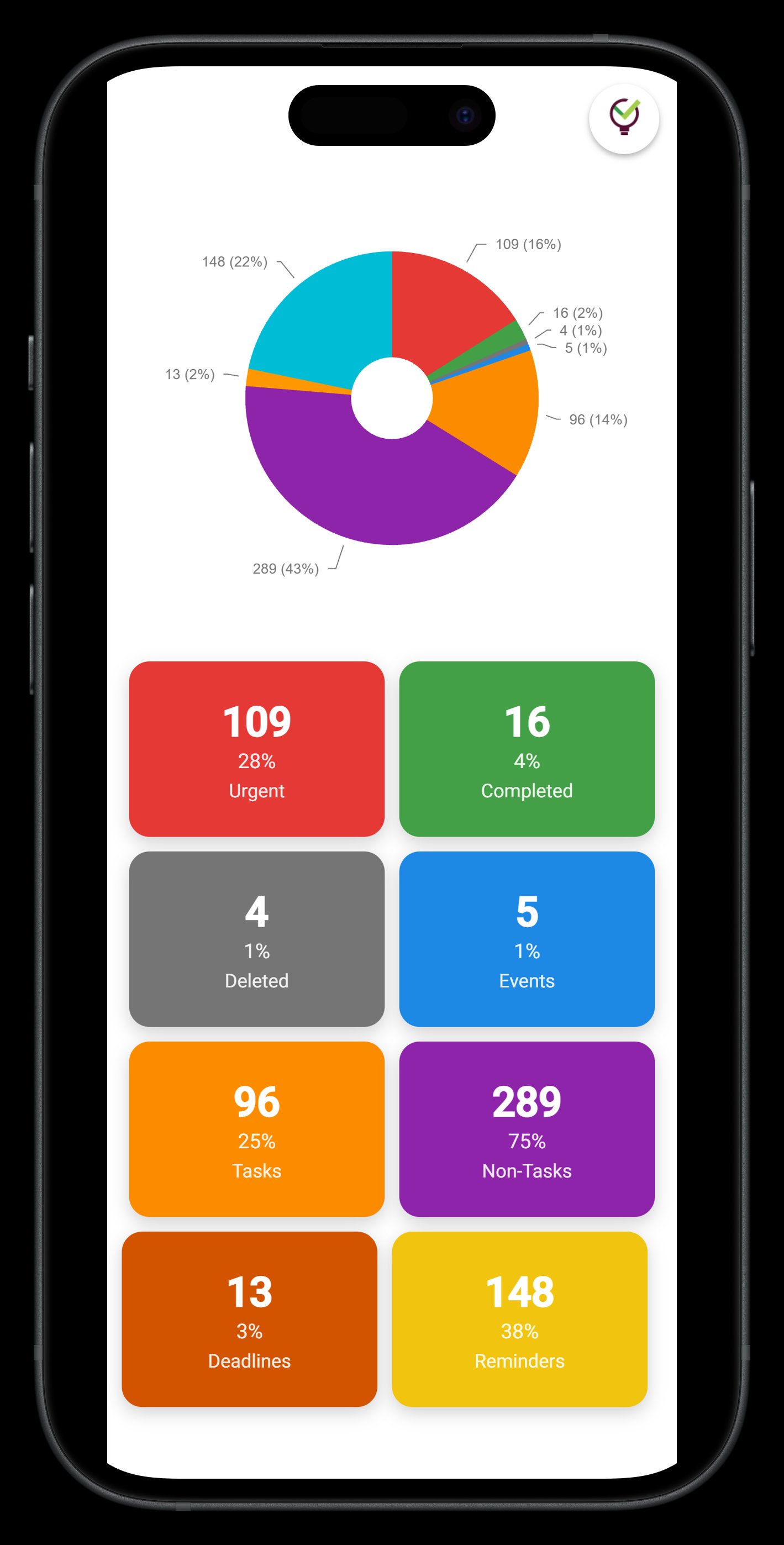
TaskLoco Premium is regularly $9.99/month per person. Right now, charter members can lock in 50% off the regular price — forever. That means $4.99/month per person today. And if our price ever goes up, you still pay half. Always.
Code CHARTER50 auto-applies at checkout. First 500 spots only — once they're gone, this offer is gone permanently. Act fast while spots last.
Every Premium subscription includes unlimited notes, 10GB file storage, reminders, calendar, and team sharing. Each team member requires a separate subscription. 7-day free trial — no charge until day 8. Cancel anytime.
Free Options: TaskLoco
TaskLoco Lite
- Native iPhone & Android app
- Completely anonymous — no sign-in
- Data stays on your device
- Up to 20 notes
- Free forever
TaskLoco Lite Plus+
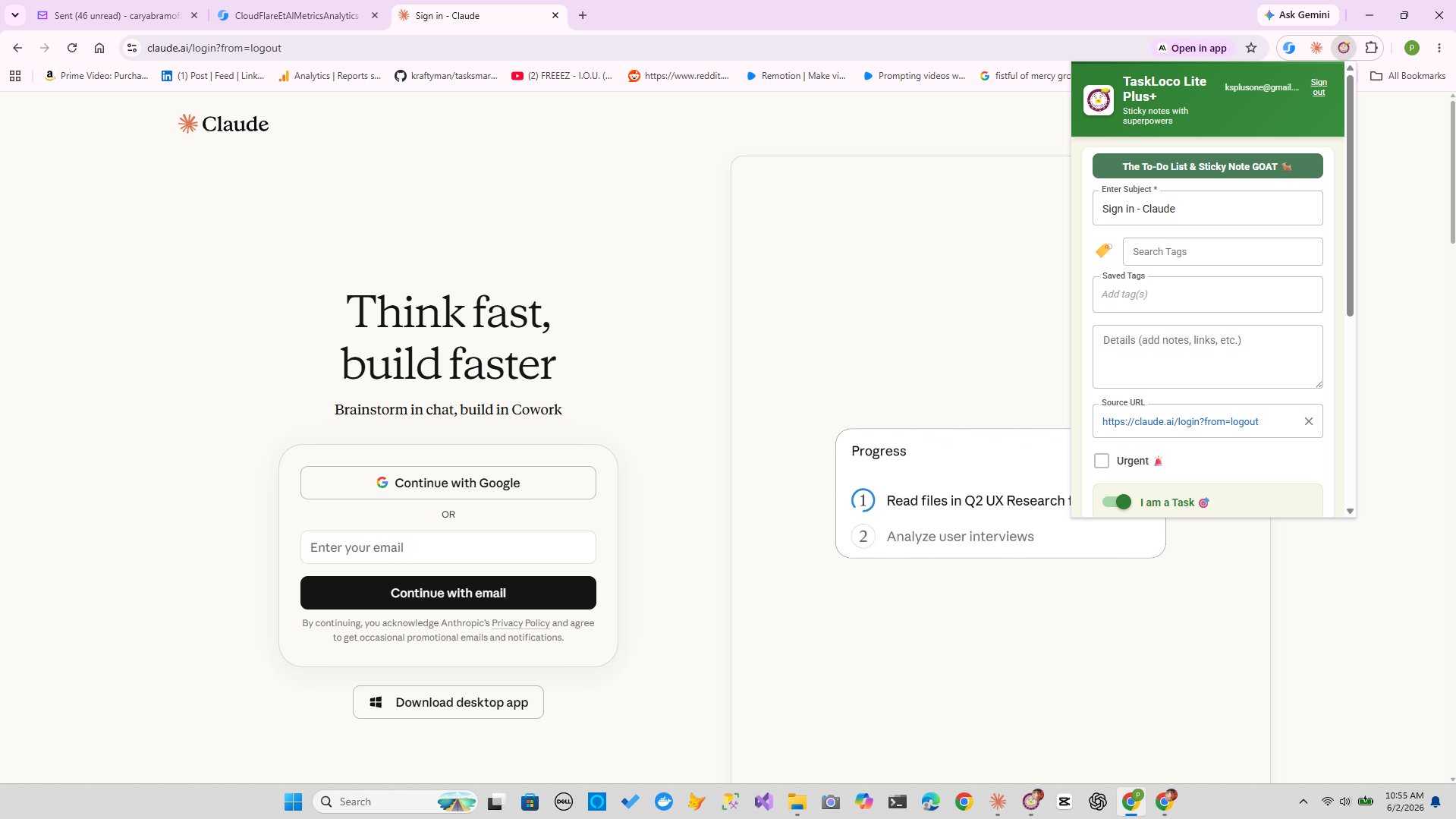
- Web app + Chrome extension
- Sign in with Google
- Wall syncs across all devices
- Up to 30 notes
- Free forever
Lock In 50% Off — Forever
7-day free trial. No charge until day 8. CHARTER50 auto-applies at checkout.
🔒 Lock In My Charter SpotSee TaskLoco in Action
Frequently Asked Questions
What's the difference between Kanban and Scrum?
Kanban is a continuous flow system with no fixed time periods — work moves through stages as capacity allows. Scrum uses fixed sprints (usually 2-4 weeks) with defined ceremonies and roles. Kanban focuses on workflow optimization; Scrum emphasizes team coordination and regular delivery cycles.
How do you determine WIP (Work in Progress) limits?
Start with a WIP limit equal to your team size, then adjust based on what actually gets finished versus what gets started. If tasks pile up in "In Progress" but nothing reaches "Done," lower your limit. If people are idle waiting for work, raise it slightly. The goal is smooth, steady flow.
Can Kanban work for personal productivity?
Absolutely. Personal Kanban typically uses three columns: "To Do," "Doing," and "Done," with a WIP limit of 3-5 tasks. It's particularly effective for people who get overwhelmed by long to-do lists or who struggle with context switching between too many active projects.
What makes a good Kanban card?
A good card contains just enough information to be actionable: a clear title, brief description, assignee, and deadline if relevant. If you need a paragraph to explain the task, break it into smaller cards. Each card should represent work that can be completed in days, not weeks.
How often should you review and update a Kanban board?
Daily for active projects — just a quick scan to move completed work, identify bottlenecks, and pull new tasks into "In Progress." Weekly for strategic review: Are your WIP limits working? Do your columns match your actual workflow? Are completed tasks revealing patterns about capacity or cycle time?
What are the most common Kanban mistakes?
Ignoring WIP limits defeats the purpose — they're not suggestions. Creating too many columns makes the board cluttered and hard to scan. Making cards too big or too small reduces effectiveness. Finally, treating Kanban as just a fancy to-do list misses the workflow optimization benefits.
How can I implement Kanban with sticky notes and task management?
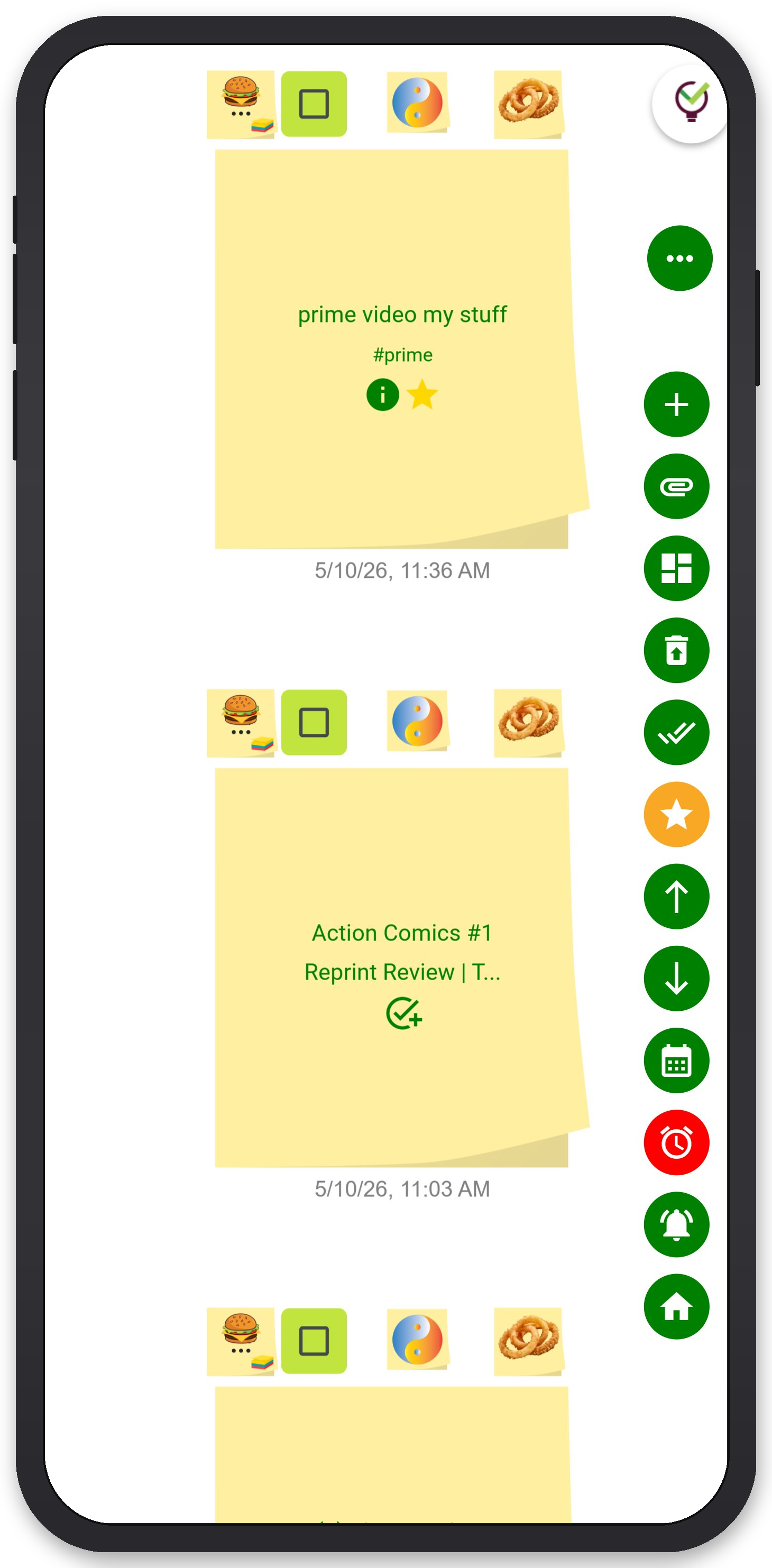
Use TaskLoco's visual note organization to create digital Kanban boards — drag notes between columns, set reminders for deadlines, attach files for context, and share boards with team members. $9.99/month per person (currently $4.99/month per person for first 500 charter members with code CHARTER50)
Born in Brooklyn. Powered by AWS. Your data stays yours.
TaskLoco is available on iPhone, Android, Chrome, and every web browser.