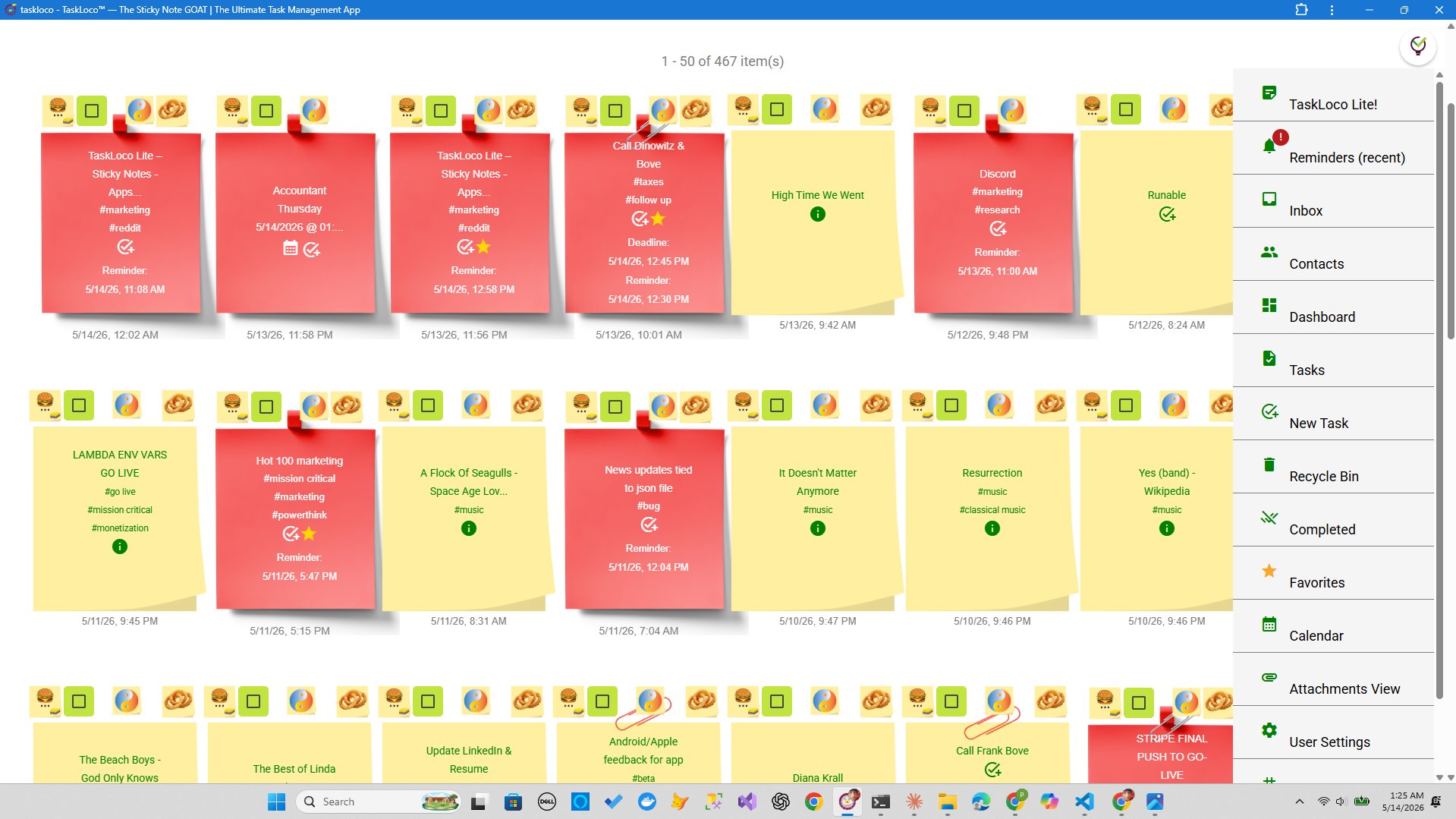
Lists are lying to you. Not maliciously — they just flatten everything. A 30-item to-do list treats your most urgent deadline exactly the same as 'buy more pens.' Your brain has to re-read, re-prioritize, and re-interpret every single time you look at it. A wall of sticky notes doesn't do that. Position carries meaning. A note at the top-left isn't the same as a note at the bottom-right. You arranged it that way on purpose.
That's why people who switch from linear apps to a visual wall — physical or digital — almost always say the same thing: 'I can finally see what I'm actually working on.' It's not a gimmick. There's real cognitive science behind it. And once you understand why it works, building one (and keeping it useful) becomes straightforward.
Why Your Brain Prefers a Wall Over a List
Humans are spatial thinkers. Long before we had writing, we navigated by landmarks, grouped things by location, and used physical arrangement to encode meaning. That wiring didn't disappear when spreadsheets were invented. When you see a sticky note pinned to the upper-right corner of your wall under a label that says 'Urgent / Client-Facing,' your brain reads the position as much as it reads the words. You don't have to decode a priority number or remember what 'P1' means.
This is sometimes called spatial memory — and it's one of the strongest forms of memory humans have. Studies in cognitive psychology consistently show that we remember where things are better than we remember what they say. A visual wall exploits this. After a day or two, you stop reading your notes and start recognizing them by shape, color, and location. The cognitive load drops dramatically.
Compare that to a nested task list. To find something, you have to remember which project it lives under, which section, which sub-task. Everything is hidden until you click. A visual wall has no hidden state — the entire system is visible at once. Psychologists call this low cognitive load: the tool requires less mental effort to use, which leaves more mental energy for the actual work.
How to Build a Visual Sticky-Note Wall That Actually Works
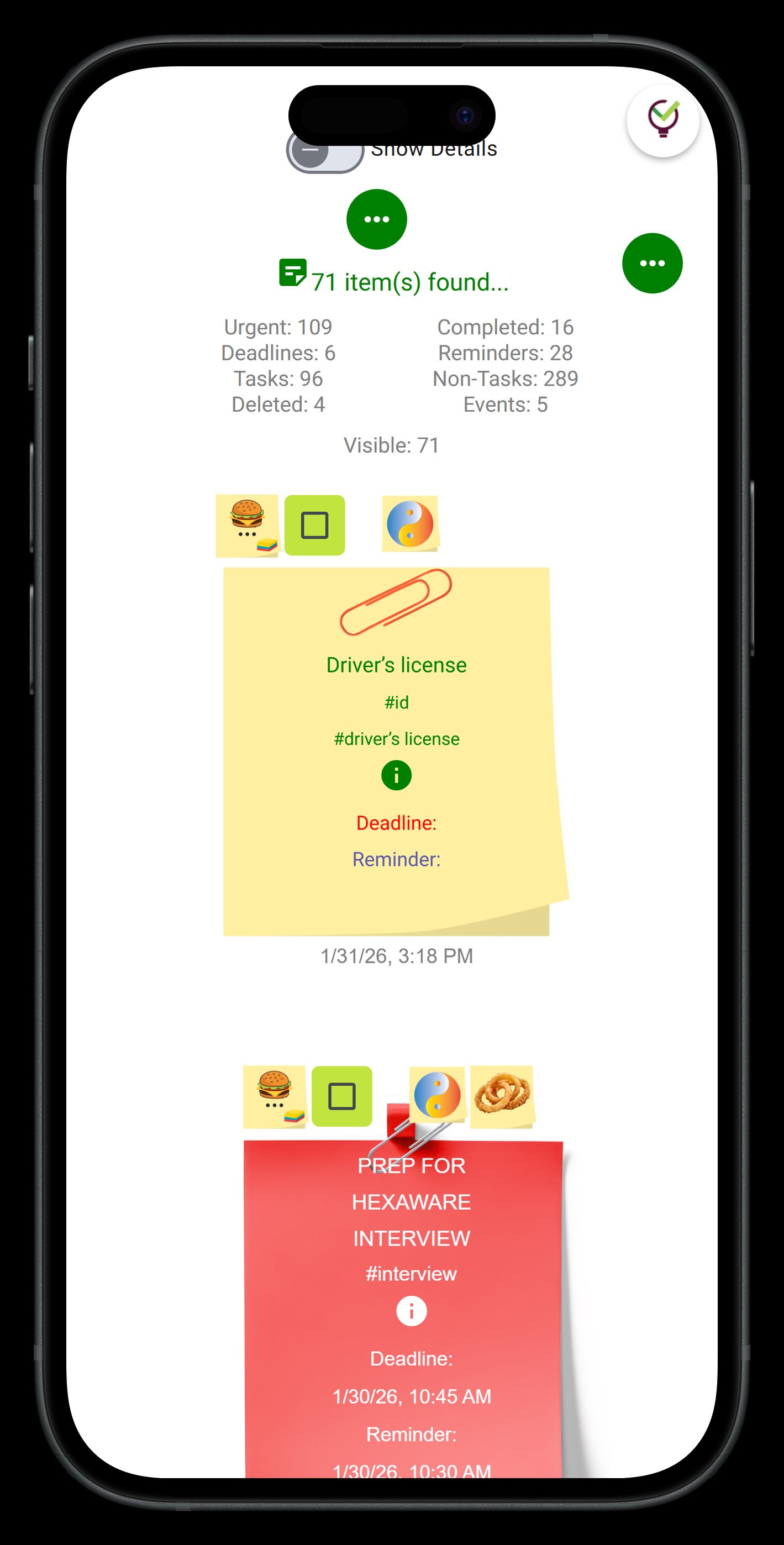
The biggest mistake people make is treating a sticky-note wall like a dumping ground. They cover every surface with notes and call it a system. Two days later, it's overwhelming and they abandon it. The wall only works if it has structure. Here's how to build one that holds up.
1. Define your zones before you add a single note. A wall without zones is just clutter with color. Zones are the skeleton. Common setups include: Now / This Week / Later for time-based thinking, or In Progress / Blocked / Done for project-based work, or a simple quadrant of Urgent–Important. Pick one framework and reserve space for each zone before anything goes up.
2. One idea per note — no exceptions. The moment you write two things on one note, you've created a task that can't be moved independently. Keep each note atomic. If you need context, write it small underneath the main idea, but the main idea should be one sentence or less.
3. Use color intentionally, not decoratively. Random colors are noise. Assigned colors are signal. A common scheme: yellow for tasks, pink for blockers or dependencies, blue for ideas not yet committed, green for done or reference. Whatever scheme you choose, write it down somewhere so you don't drift from it after a week.
4. Do a daily five-minute sweep. The wall gets stale fast if you don't maintain it. Every morning, spend five minutes moving notes that changed status, removing anything completed, and adding anything new that came in overnight. This sweep is what separates a living system from a decorative one.
5. Limit your 'Now' zone ruthlessly. The whole point of a visual wall is honest prioritization. If everything is in 'Now,' nothing is. Most people find that three to five notes in the active zone is the practical ceiling for one person in a given day. Force yourself to move things to 'Later' if they don't fit. The constraint is the feature.
Physical Wall vs. Digital Wall — What You Actually Lose and Gain
Physical walls are genuinely good. There's tactile feedback in peeling a note and sticking it somewhere. The act of writing by hand slows you down just enough to think. And a real wall doesn't send you notifications or open a browser tab that leads to a rabbit hole. If you have wall space and work primarily in one location, a physical setup is worth trying before anything else.
But physical walls have real constraints. They don't travel. They can't be shared with someone in another city. You can't attach a PDF to a sticky note. You can't get a push notification reminder tied to a specific note when a deadline arrives. And if you work across multiple locations — home, office, client sites — your wall becomes shackled to one room.
Digital sticky-note walls solve the portability and collaboration problems without necessarily losing the spatial logic. The best digital implementations let you arrange notes freely on a canvas, color-code by your own scheme, and move things around by dragging — not by editing metadata or changing dropdown values. The feel should be close to physical. Where digital walls go wrong is when they add so much structure (templates, mandatory fields, hierarchies) that the notes stop feeling like notes and start feeling like database records.
The switch most people are making right now isn't from physical to digital because digital is better in the abstract. It's because the specific friction of a physical wall — no sharing, no reminders, no attachments, no access from anywhere — finally outweighs the tactile benefits. When you find a digital tool that preserves the spatial feel while solving those friction points, the switch becomes obvious.
One Digital Tool Worth Trying: TaskLoco
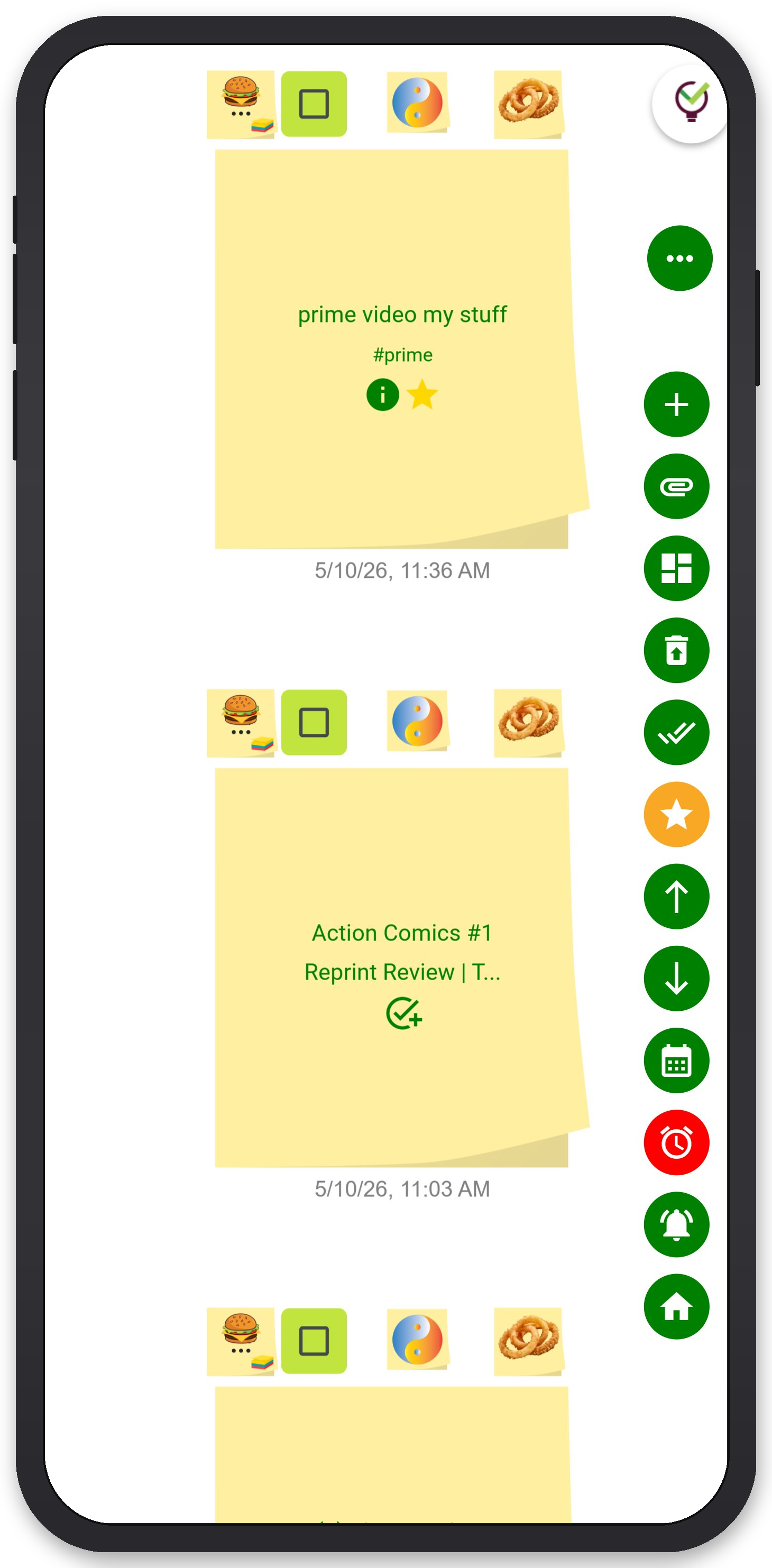
TaskLoco was built around exactly this philosophy — notes as the primary object, spatial arrangement as the primary interface. You open the wall view and see your notes laid out in front of you, grouped the way you arranged them, color-coded the way you chose. There's no mandatory project hierarchy you have to learn before you can put anything down. You just start placing notes.
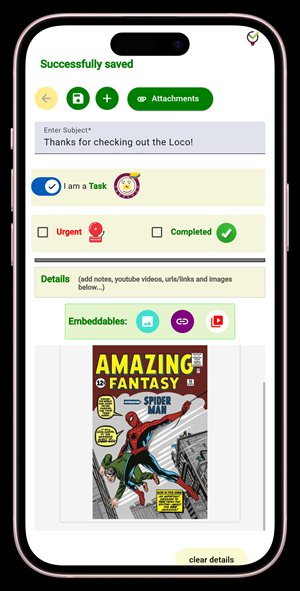
A few things that matter if you're coming from a physical wall: TaskLoco's Premium tier includes reminders delivered as push notifications directly to your phone and computer, and each reminder deep-links back to the original note — so you're not just notified, you're taken straight to the context. Optional email and SMS notifications are available as additional channels. You can also attach files (10GB of storage included), which means the note that says 'Finalize contract' can actually hold the contract.
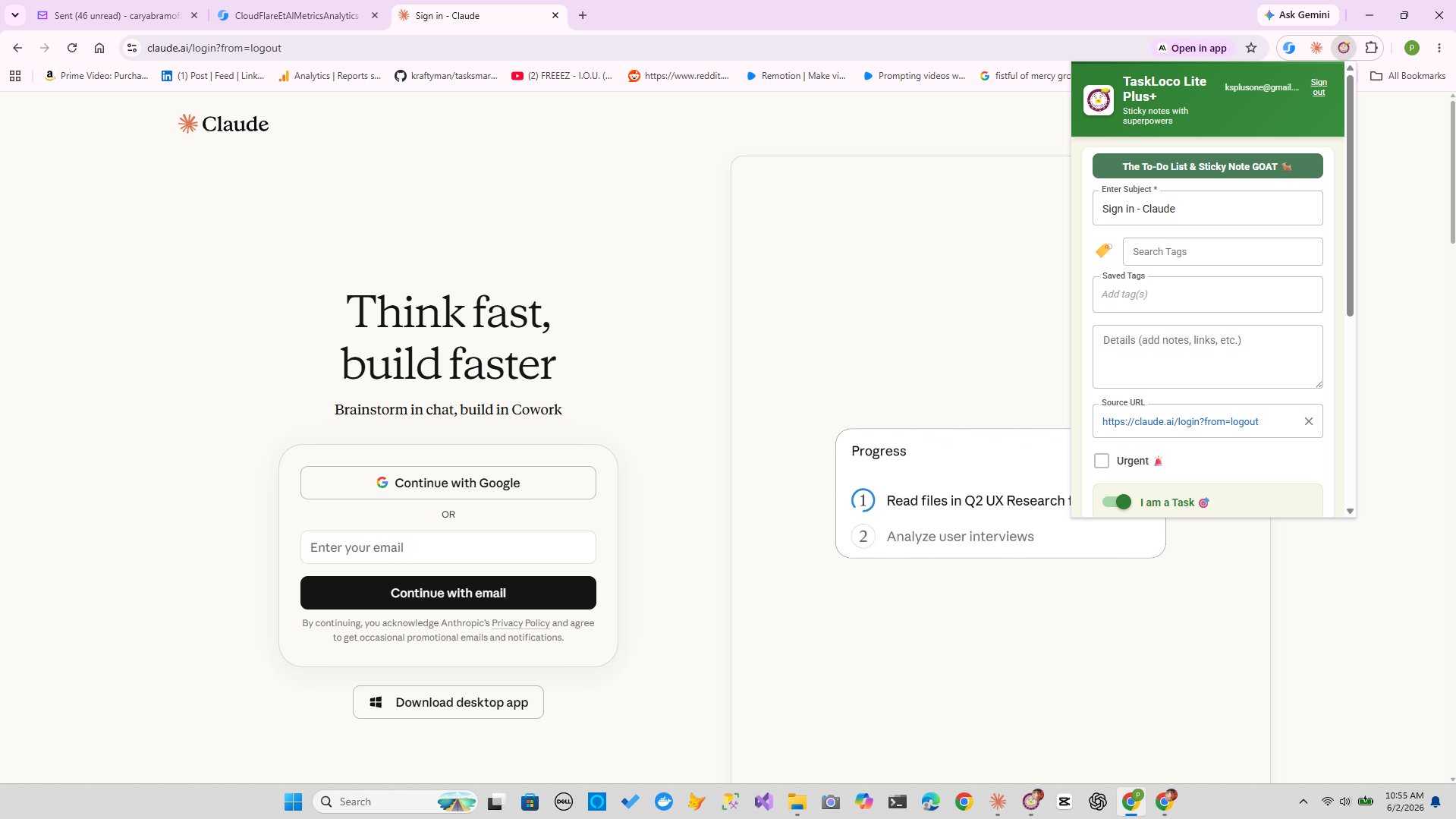
The Chrome extension is worth mentioning for research-heavy work: one click captures any webpage as a note. If you're reading something and want it on your wall, it takes less than two seconds. No copy-paste, no tab-juggling.
Team sharing works the way you'd expect from email: share a note with someone, they receive it, and they can clone it into their own wall and make it their own. No permissions architecture to configure, no access levels to manage. It works the same way whether you're sharing with one person or ten.
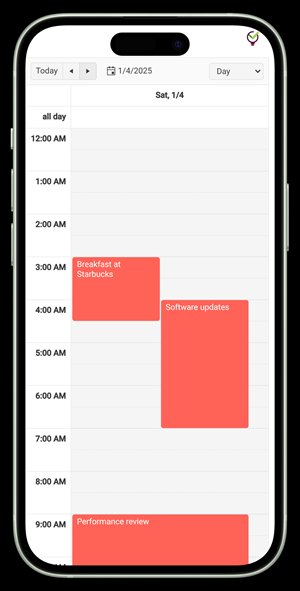
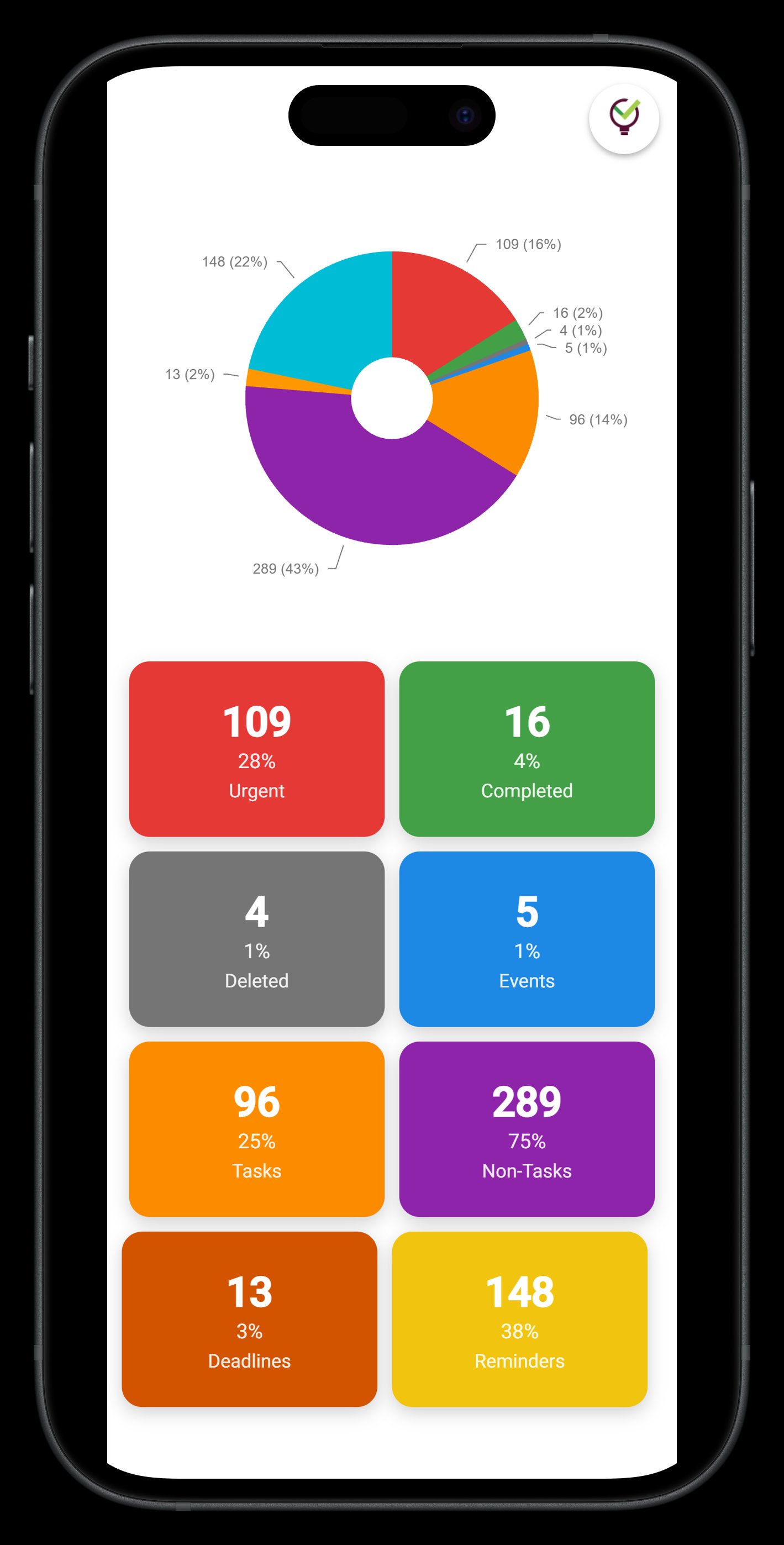
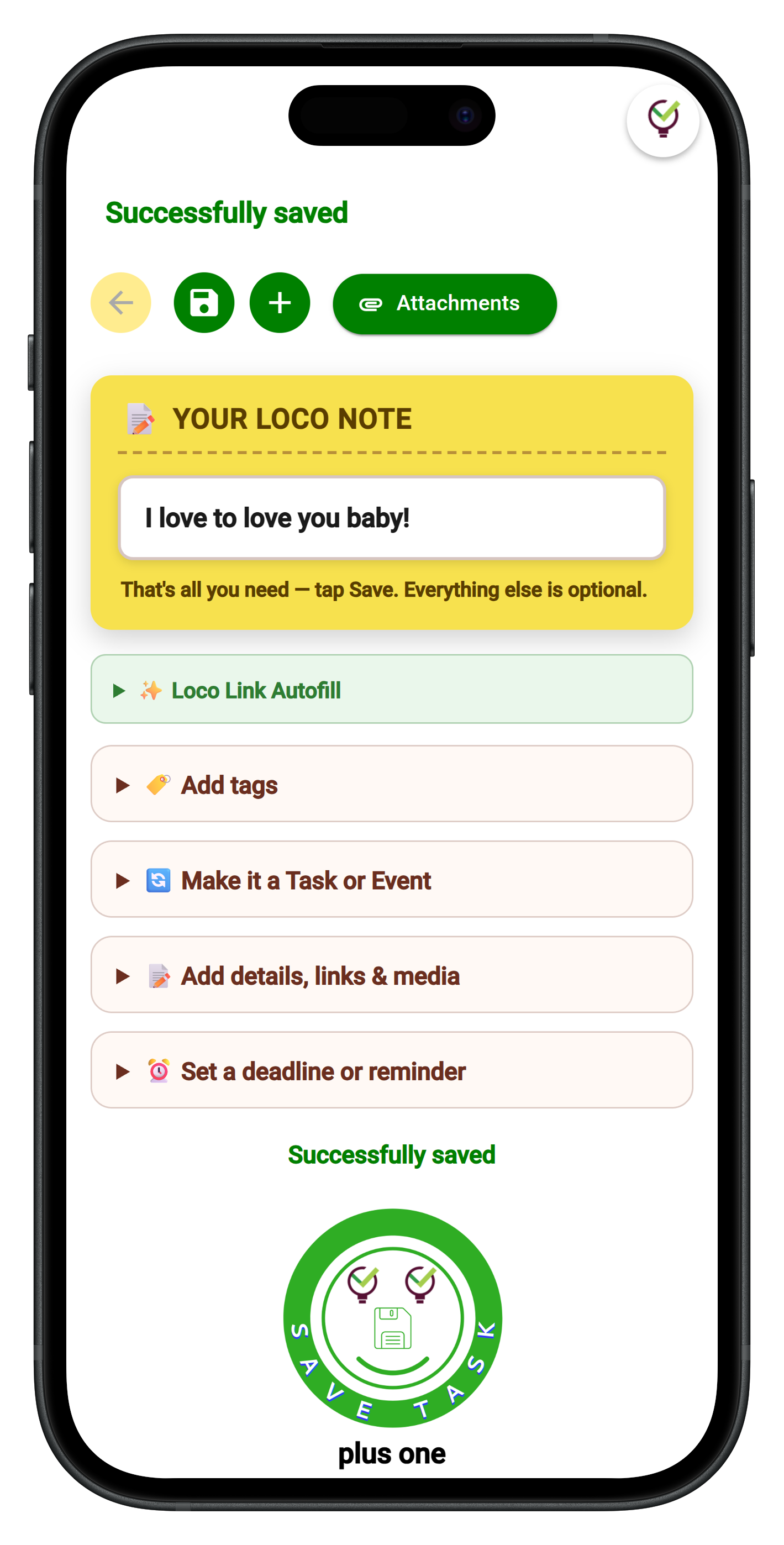
There's a free native app (TaskLoco Lite) on iPhone and Android — anonymous, no sign-in required, stores up to 20 notes on your device. Good for testing the note-taking approach with no commitment. The full wall experience with reminders, attachments, calendar view, and team sharing lives in the web app (TaskLoco Premium), which runs in any browser including on mobile.
TaskLoco Premium is regularly $9.99/month per person. Right now, charter members can lock in 50% off the regular price — forever. That means $4.99/month per person today. And if our price ever goes up, you still pay half. Always.
Code CHARTER50 auto-applies at checkout. First 500 spots only — once they're gone, this offer is gone permanently. Act fast while spots last.
Every Premium subscription includes unlimited notes, 10GB file storage, reminders, calendar, and team sharing. Each team member requires a separate subscription. 7-day free trial — no charge until day 8. Cancel anytime.
Free Options: TaskLoco
TaskLoco Lite
- Native iPhone & Android app
- Completely anonymous — no sign-in
- Data stays on your device
- Up to 20 notes
- Free forever
TaskLoco Lite Plus+
- Web app + Chrome extension
- Sign in with Google
- Wall syncs across all devices
- Up to 30 notes
- Free forever
Lock In 50% Off — Forever
7-day free trial. No charge until day 8. CHARTER50 auto-applies at checkout.
🔒 Lock In My Charter SpotSee TaskLoco in Action
Frequently Asked Questions
Why are people switching from apps like Trello or Notion to a sticky-note wall?
Most task apps require you to understand their structure before you can use them effectively — boards, workspaces, databases, projects. A sticky-note wall requires none of that. You put ideas down spatially and move them as things change. People switching from heavier apps often describe it as 'finally being able to see everything without clicking around.' The tradeoff is fewer power features, but for many people that's not a tradeoff — it's the point.
What's the best way to organize a sticky-note wall?
Start with zones before you add any notes. The most common frameworks are: Now / This Week / Later (time-based), In Progress / Blocked / Done (status-based), or a simple Urgent–Important quadrant. Pick one, reserve space for each zone, then add notes. Color-code by category, not randomly. Limit your active zone to three to five items max — the constraint forces real prioritization.
Is a physical sticky-note wall better than a digital one?
Physical walls have real advantages: no distractions, tactile feedback, and handwriting slows you down enough to think. But they don't travel, can't be shared remotely, can't hold file attachments, and can't send you reminders tied to specific notes. Digital walls solve those problems. If you work in one location and don't collaborate remotely, try physical first. If you need portability, sharing, or reminders, digital is the practical choice.
How do I stop my sticky-note wall from becoming cluttered and useless?
The wall gets stale without a daily sweep. Every morning, spend five minutes: move anything that changed status, remove anything completed, and add overnight items. The second killer is overloading the active zone — keep it to three to five notes maximum. And enforce the one-idea-per-note rule with no exceptions. Two ideas on one note means neither can be moved independently, which breaks the whole spatial logic.
Can a digital sticky-note wall work for a team?
Yes, and it's often more practical than a physical one for teams spread across locations. The key is shared visibility — everyone needs to see the same wall state without one person acting as the gatekeeper. TaskLoco Premium includes team sharing where notes are shared the way email works: the recipient gets the note and can clone it into their own wall. Real-time sync keeps everyone current. Each team member needs their own subscription — there's no single account that covers a whole group.
What's the difference between a sticky-note wall and a Kanban board?
Kanban boards are a specific type of sticky-note wall — columns represent fixed stages (To Do, In Progress, Done) and cards move left to right. A general sticky-note wall is more freeform: you define your own zones, arrange notes spatially however makes sense to you, and aren't constrained to a linear flow. Kanban is great for workflow tracking. A freeform wall is better for mixed work — brainstorming, planning, reference, and action items all coexisting in one view.
How does TaskLoco handle reminders on sticky notes?
TaskLoco Premium reminders are delivered as push notifications to your phone and computer. Each reminder deep-links directly back to the original note, so you land in context immediately — not just an alert with a title. Optional email notifications are also available, and SMS is an optional add-on. Reminders are a Premium feature and are not available on Lite or Lite Plus+.
Born in Brooklyn. Powered by AWS. Your data stays yours.
TaskLoco is available on iPhone, Android, Chrome, and every web browser.